Thunderbird – Creating a text signature
Thunderbird lets you set a text signature, which is added to the message editor as soon as you start writing a new message.
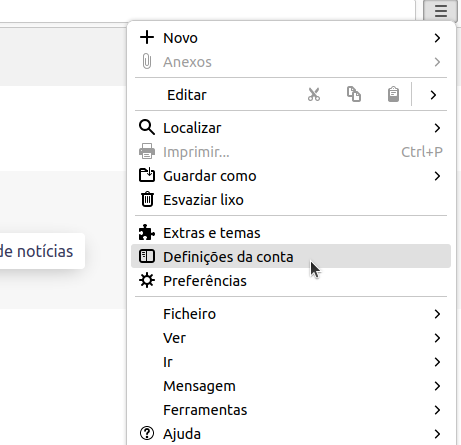
Signature settings are changed for each account the user has set up on their computer. To reach the settings, select the “Account Settings” option in the Thunderbird menu.
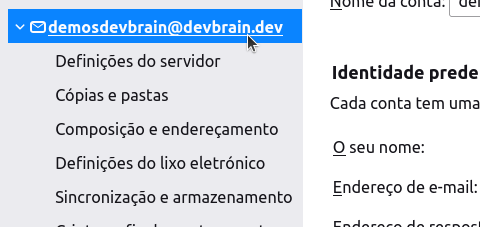
Here we will find the accounts we have set up. Click the title of the account for which you want to create the signature.
A window opens that lets you add, maintain and delete the accounts managed by Thunderbird. This is where we select the account whose signature we want to configure.
Another panel becomes available in the window, where you can set the signature as text, or use an external file with the signature content.
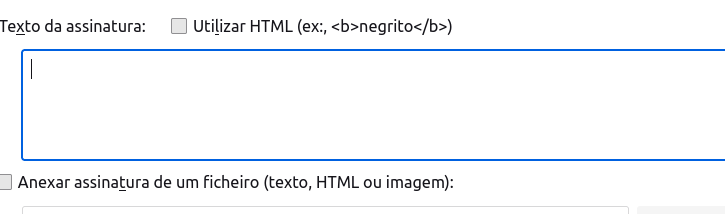
In the box you can enter the text you want to appear. If you know HTML, you can write the signature using HTML markup by selecting the “Use HTML” option.