Setting up Webmin with Let's Encrypt
We have installed Webmin, but now it is important to install a certificate that is not self-signed, so we don’t keep seeing error messages in browsers.
In Webmin we can change this setting directly in Webmin itself

Going to the Webmin option in the main menu and then “Webmin Configuration”, we find the “SSL Encryption” option
In this option we select the “Let’s Encrypt” tab
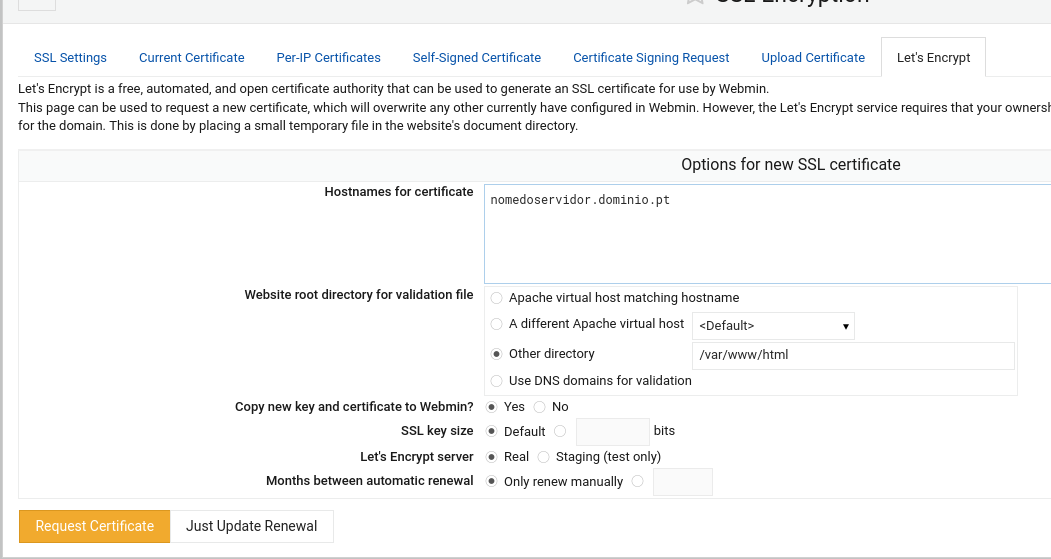
We fill in the domain we want and, in this case, we can point to the root folder of the domain we want the certificate for or, if we want to request a certificate for each domain we have configured, we select the option to read the virtual hosts configuration.
We start the process by pressing the “Request Certificate” button.
If the DNS records of the hostname(s) we are requesting the certificate for are correct, that is, pointing to the server we are configuring, the process should go smoothly.
After that, you just need to open Webmin at https://servername.domain.com:10000